How to Run a Local LLM in VS Code on Windows 11 (with an Nvidia GeForce 3090, 4090, or 5090)
Want local LLM performance inside VS Code? This guide walks you through building llama.cpp with full CUDA support so you can run powerful models like Qwen3‑27B right on your NVIDIA GPU.
An NVIDIA GPU (GeForce 3090, 4090, or 5090 recommended)
Visual Studio 2022 with the Desktop development with C++ workload installed
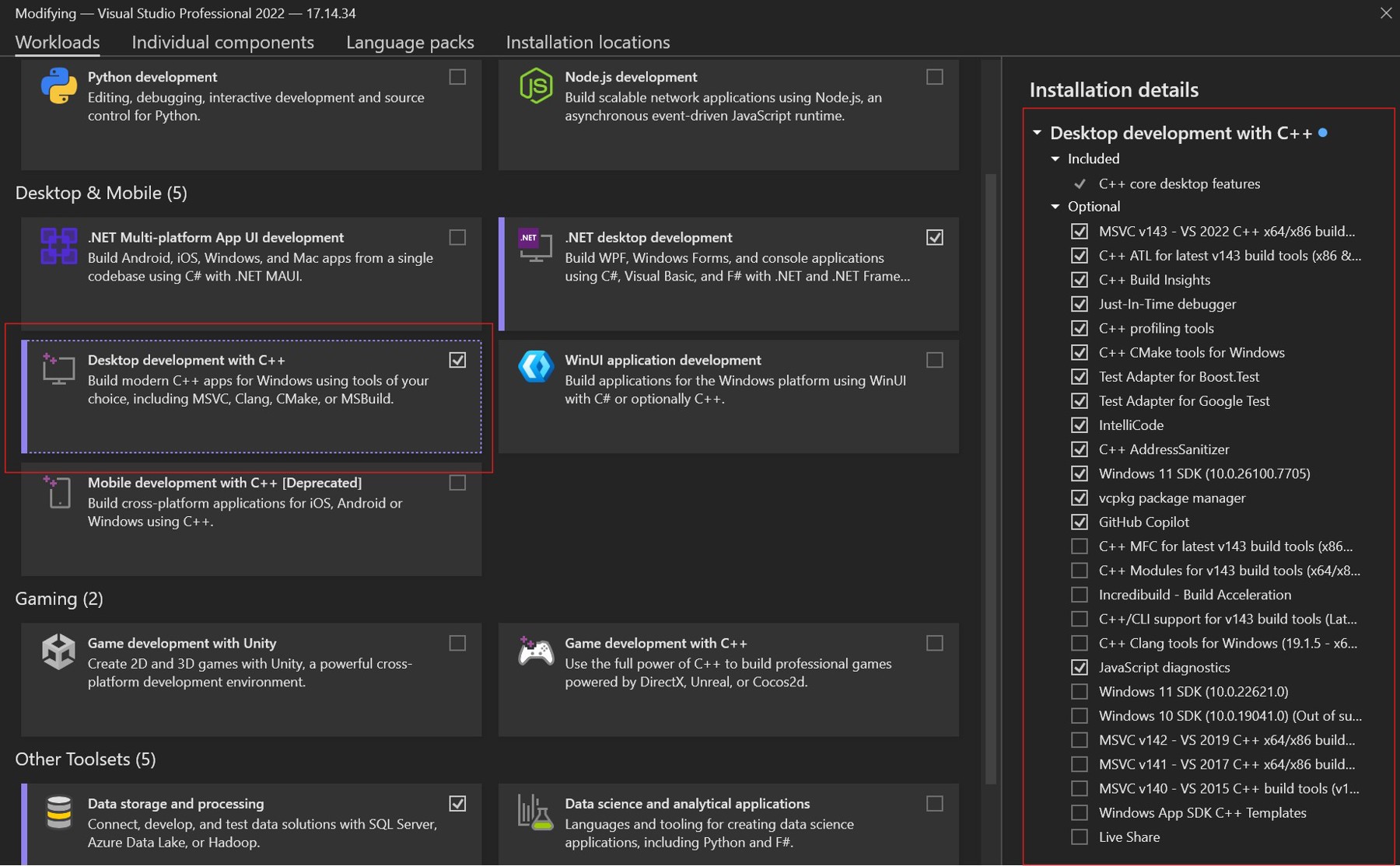
Necessary VS 2022 components View Full Size
Go to NVIDIA’s site and download CUDA 12.4 (the most stable version with llama.cpp as of mid‑2026):
CUDA 12.4.0 Download Archive:
https://developer.nvidia.com/cuda-12-4-0-download-archive
Install with default settings.
After installing CUDA, manually copy the Visual Studio integration files.
Open this folder:
C:\Program Files\NVIDIA GPU Computing Toolkit\CUDA\v12.4\extras\visual_studio_integration\MSBuildExtensionsCopy these four files:
CUDA 12.4.props
CUDA 12.4.targets
CUDA 12.4.xml
Nvda.Build.CudaTasks.v12.4.dll
Paste them into:
C:\Program Files\Microsoft Visual Studio\2022\Professional\MSBuild\Microsoft\VC\v170\BuildCustomizations(If you installed VS 2022 Community or Enterprise, adjust the path accordingly.)
Open Developer PowerShell for VS 2022 and run:
powershell
# Clone the repo
git clone https://github.com/ggerganov/llama.cpp
cd llama.cpp

# (Optional) Clean previous build
# Remove-Item -Recurse -Force build

# Configure the build with CUDA + server + MTP support
cmake -B build `
  -DGGML_CUDA=ON `
  -DLLAMA_BUILD_SERVER=ON `
  -DLLAMA_BUILD_BORINGSSL=ON `
  -DBUILD_SHARED_LIBS=OFF

# Build the tools we need (this will take 20–30 minutes)
cmake --build build --config Release --clean-first --target llama-cli llama-mtmd-cli llama-server llama-gguf-split
Copy the built executables to the root folder:
powershell
Copy-Item "build/bin/Release/llama-*" -Destination "."A great GGUF model for coding and general use:
Recommended for 3090/4090 users:
https://huggingface.co/unsloth/Qwen3.6-27B-MTP-GGUF
A 27B model runs extremely well on a 3090.
A 5090 can comfortably handle 70B‑class models.
powershell
$env:LLAMA_CACHE = "D:\projects\llm-models"Choose any directly where you want the models to go. This keeps downloaded models organized instead of filling your temp folders.
powershell
./llama-server.exe `
  -hf "unsloth/Qwen3.6-27B-MTP-GGUF:UD-Q4_K_XL" `
  -ngl 99 `
  -c 8192 `
  -fa on `
  -np 1 `
  --spec-type draft-mtp `
  --spec-draft-n-max 2
powershell
./llama-server.exe `
  -hf "unsloth/Qwen3.6-27B-MTP-GGUF:UD-Q4_K_XL" `
  -ngl 99 `
  -c 16384 `
  -fa on `
  -np 1 `
  --spec-type draft-mtp `
  --spec-draft-n-max 2
-ngl 99 offloads everything to the GPU for maximum speed
-c 8192 is the sweet spot for responsiveness
-c 16384 or higher is ideal for long‑context work

Owner and Lead Developer of RainstormTech specializing in all manner of technologies.
Give developers with dynamic/public IPs secure, private access to Azure SQL while keeping the public endpoint available for static-IP users and existing web apps.
Learn how to setup your local VS Code environment with a local, open-source LLM
What does it take to be a Millionaire today? Surprisingly similar to what it was 30 years ago, with a few updates.
This book provides actionable strategies for financial management, emphasizing the importance of budgeting, saving, and investing to build a stable economic foundation. The book's...